Extract or split PDF pages: which do you need?
Choose the right pages from a PDF, avoid sending unrelated records and check your extracted document before sharing it.
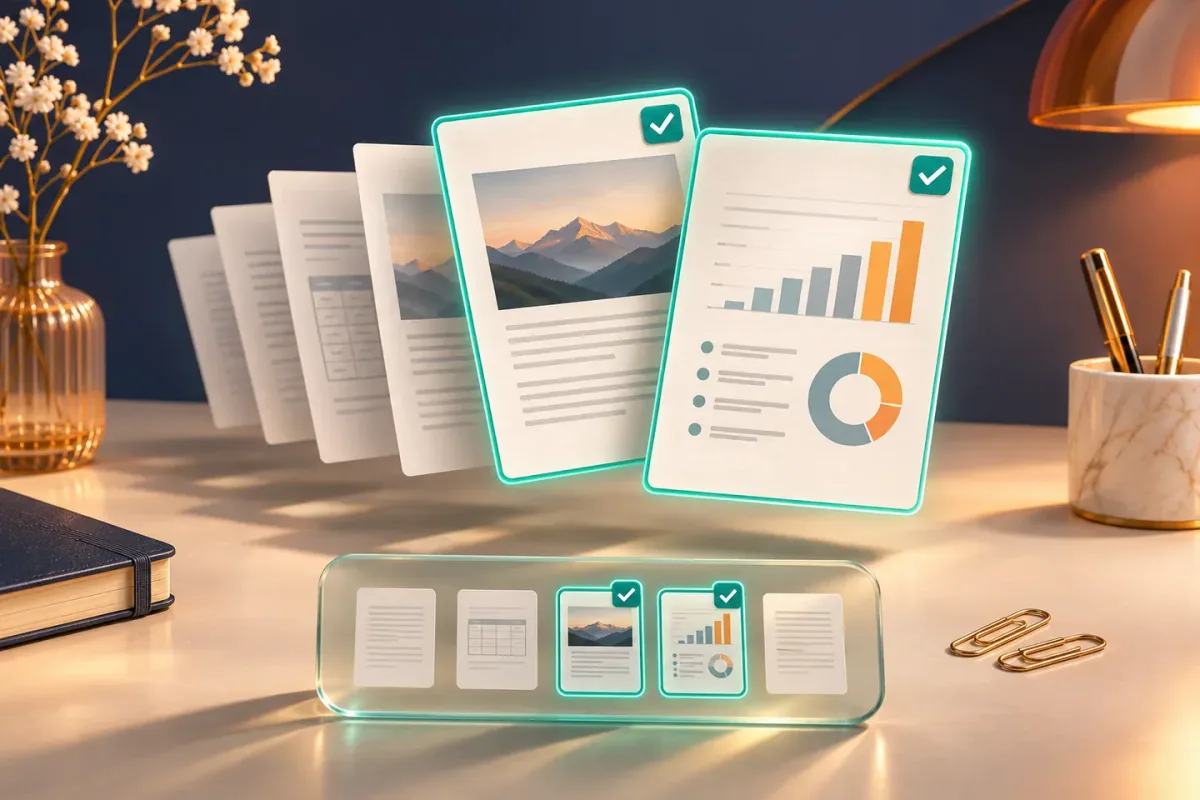
Extract pages when you need one smaller PDF containing selected pages. Split a document when you need separate parts. Use page positions in the PDF viewer, which may differ from the printed page numbers.
The essentials
- The PDF's first page is position 1 even if its printed label is a cover or a Roman numeral.
- Check the selected pages before and after downloading the extracted document.
- Removing a page does not redact sensitive information that remains on other pages.
Choose an output that matches the task
“Split PDF” can describe several different tasks. You might want one receipt from a monthly statement, a chapter from a manual, or a large report divided into smaller documents. Decide whether you need one PDF of selected pages or several separate PDFs before choosing an output.
For example, suppose a 12-page file contains an invoice on pages 2 and 3, followed by unrelated client records. Extracting positions 2 and 3 produces a two-page invoice PDF. Splitting every page individually would produce separate files and create extra work for the recipient. Gencyh's Split PDF tool lets you select a page range for a smaller PDF; repeat the process for another section when needed.
Use PDF page positions, not printed labels
A report might have a cover, two contents pages and then a page printed as “1”. In that case, printed page 1 is actually the fourth page in the PDF. View the page thumbnails or the viewer's position counter to confirm the range you need.
- Open the source PDF and identify the first and last positions of the section.
- Select the source in the tool and enter the required page range using the format shown beside the input.
- Create and download the selected-page PDF.
- Open the download, count its pages and confirm that the first and last pages belong to the intended section.
If the range begins or ends in the middle of a topic, consider adding the relevant heading or explanatory page. The goal is a file that remains understandable on its own. Name it clearly, such as invoice-1042.pdf, rather than leaving the recipient to guess what “split-final-2.pdf” contains.
Check sensitive information separately
Extracting a range removes unselected pages from that output. It does not cover an account number or delete a paragraph on a selected page. Proper redaction is a separate task: drawing a dark rectangle over visible text is not reliable redaction if the underlying information remains in the PDF.
Review each included page, including headers, footers, signatures and attachments or interactive features where relevant. For a signed document, extraction can affect signature validity. Keep the signed source intact and confirm the recipient's requirements before sending a modified version.
Keep a recoverable source copy
The selected-page operation creates a new download. Keep the original until you have verified the result and completed the task. Large or image-heavy PDFs can need substantial browser memory; working with a smaller source section may be more practical on a phone.
If your final document needs pages from more than one source, extract the relevant sections first and then merge the smaller PDFs in their intended order. This makes the page count easier to check and limits unrelated material in the final document.
Put this guide to work
Frequently asked questions
Does extracting pages remove the original file?
No. The browser tool creates a new download. Keep the original until you have reviewed the new file and no longer need a source copy.
Is selecting pages the same as redacting a document?
No. It excludes whole pages. Sensitive information on an included page still needs a proper redaction workflow in a suitable application.
References
- PDF-LIB documentation - PDF-LIB
