How to merge PDF files in the right order
Combine PDFs, check the page order and review the final document. Learn what merging changes and what to check before sharing.
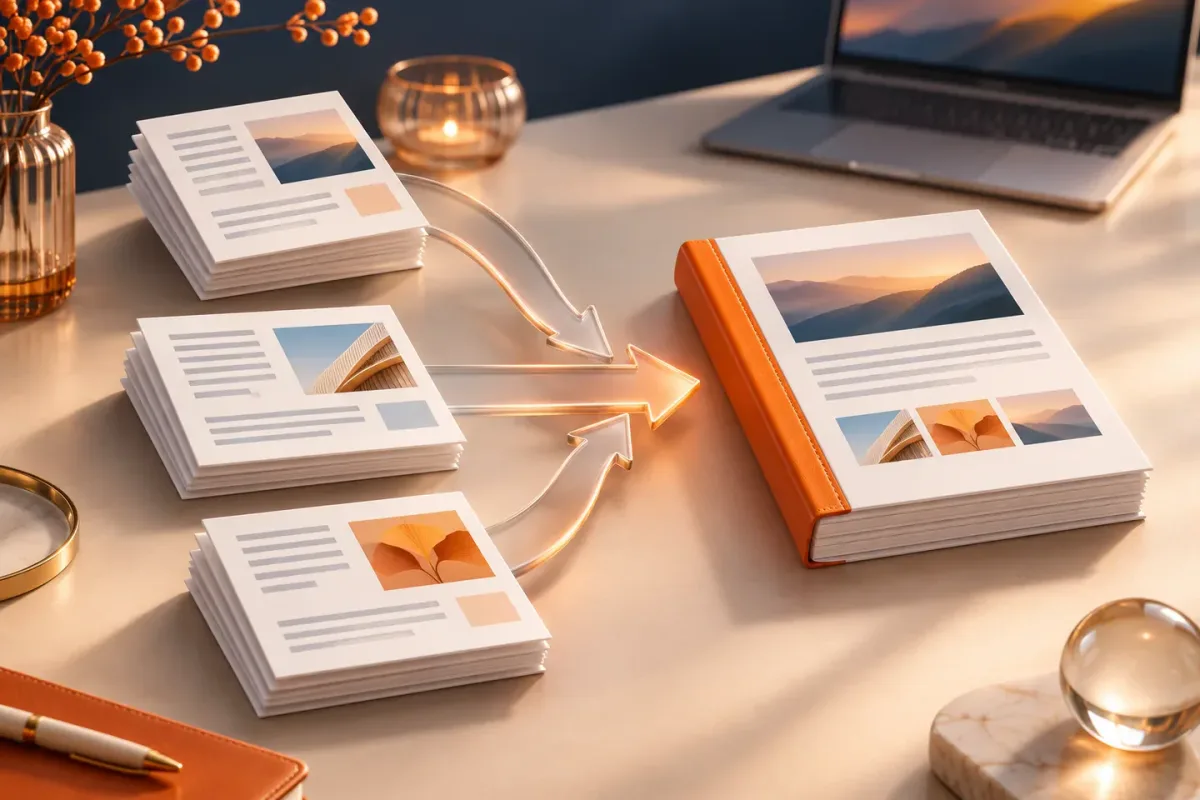
To combine PDFs, choose the source files, arrange them in the order you want, merge them and open the downloaded result. Keep the originals until you have checked every page.
The essentials
- The file order determines the sequence of pages in the combined PDF.
- Merging does not automatically compress images, add OCR or repair a damaged document.
- Check signed documents, forms and sensitive content before sharing a modified copy.
Start with the final document order
A useful merged PDF should make sense to the recipient without extra explanation. Before you select files, decide what belongs first, what can be left out and whether a cover page is necessary. Give the originals clear names such as 01-cover.pdf, 02-proposal.pdf and 03-appendix.pdf. Keep a separate working copy if you are handling important records.
For example, a proposal might contain a two-page introduction, a four-page scope and a one-page quotation. In that order, the merged result should contain seven pages. This simple count makes a missing file or an accidental duplicate easier to spot.
Combine the files, then check the result
- Open the Merge PDF tool and select the PDFs you want to combine.
- Arrange the selected files so the cover or introduction comes first. Do not assume the order shown by your file picker is correct.
- Run the merge and download the resulting PDF with a descriptive name.
- Open the download in a PDF viewer. Check its page count, first and last pages, and the point where each source file begins.
Also look for sideways pages, unexpected blank pages, clipped content and text that is too small to read. If a source document is wrong, correct that source and merge again. A successful download only confirms that a file was produced; it does not confirm that its contents are ready to send.
Understand what merging preserves
Merging combines pages. It is not a guarantee that advanced document features will survive unchanged. Fillable fields, bookmarks, embedded attachments, accessibility tags and interactive features may need additional checking. Editing a digitally signed PDF can invalidate its signature, so send the signed original separately when the signature matters.
Do not expect a smaller file just because several documents became one. A PDF containing large scans may still be large after merging. Resizing the source scans or changing their image quality before making the PDF can have a bigger effect, although reducing quality can make small text harder to read.
Handle private documents carefully
Gencyh's merge tool processes selected documents in your browser. Your document files are not uploaded for the merge operation. A shared device can still retain downloads, and browser extensions can have their own permissions. Choose an appropriate device, remove working copies when you no longer need them and send the final file through a channel suitable for its contents.
If you only need a few pages from a large source, extract those pages first. The recipient will have less to read, and you reduce the chance of including an unrelated record.
Put this guide to work
Frequently asked questions
Will merging make my PDF smaller?
Not necessarily. Combining pages is different from compressing their contents. Check the downloaded file size and use appropriately sized source images when creating scanned documents.
Can I merge password-protected PDFs?
The tool does not remove password protection. Use an authorized PDF application to create an accessible copy first, and only modify documents you have permission to edit.
References
- PDF-LIB documentation - PDF-LIB
- File API - MDN Web Docs
