Turn images into a readable PDF: a simple checklist
Create a clear PDF from photographs or scans. Check orientation, page order, text size and file size before sending it.
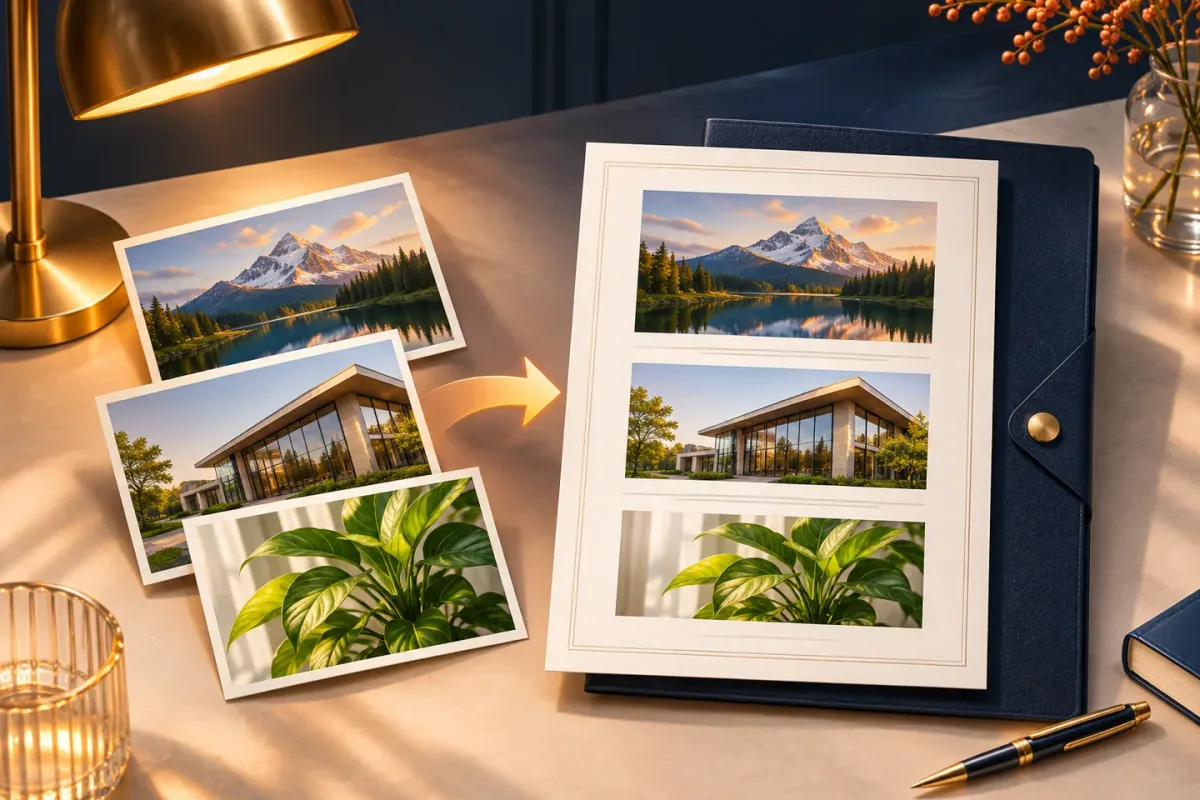
Prepare clear, upright images, arrange them in reading order and convert them into a PDF. Open the result at normal reading size; an image-based PDF does not automatically contain searchable text.
The essentials
- Clean, correctly oriented source images matter more than a high quality setting alone.
- A PDF made from photos remains image-based unless a separate OCR process adds text.
- Check the recipient's page and file-size requirements before creating the final version.
Prepare each image before converting
A PDF wrapper cannot restore detail that was missing from a blurry photograph. Place the document on a flat surface, use even light and avoid shadows across small text. Capture the full page, check that all four edges are visible and make sure the writing is sharp before continuing.
Rotate sideways images and crop away unnecessary background. If you are preparing four photographed receipts, put them in date or expense order before you create the file. Clear names such as 01-travel.jpg and 02-hotel.jpg help you recognize them in the selected-file list.
Choose dimensions for the destination
Start with the instructions from the recipient. A job application, print shop or expense portal may specify page size, file type and a maximum file size. Do not reduce images so aggressively that small numbers become difficult to distinguish. For printing, useful detail depends on both the image's pixel dimensions and how large it will appear on paper.
For example, a 1200-pixel-wide image placed across 6 inches has 200 pixels per inch. That calculation describes the available image detail; it does not guarantee a good scan. A sharp, evenly lit original can be more readable than a much larger blurred photo.
Create and review the PDF
- Open the Images to PDF tool and select supported image files.
- Arrange the images in their intended reading order.
- Create the PDF and download it.
- Open the download and check orientation, margins, page order and text readability on every page.
Review at normal reading size, then zoom in on small print, totals and signatures. Check whether a portrait image has become too small on a wide page or whether content near an edge has been clipped. The tool places images on a white background; check transparent graphics before converting. If something is wrong, fix the source image and create another PDF.
Know the limits of an image-based PDF
Converting photographs into a PDF does not recognize the words in them. The text may not be searchable, selectable or accessible to a screen reader. If the recipient needs searchable text, use an OCR workflow and check the recognized text carefully, especially names, dates and monetary values.
An image-based copy also does not replace a digitally signed original or prove a document's authenticity. Keep original records when they are needed for legal, accounting or verification purposes. Do not assume that combining images preserves metadata or document features from another source format.
Keep the final file manageable
If the PDF exceeds the recipient's limit, remove unnecessary images or resize the source images before converting again. Keep an original copy and compare the smaller result side by side. Compression that makes a tiny logo slightly softer may be acceptable; compression that obscures an invoice number is not.
Gencyh's image-to-PDF conversion runs in your browser. The source images are not uploaded for this conversion, but the resulting download still needs the same care as any other copy of the documents.
Put this guide to work
Frequently asked questions
Will the text in my photographs become searchable?
No. Image-to-PDF conversion places the images into a document. Searchable or selectable text requires OCR or a text-based source document.
Why is my PDF larger than expected?
High-resolution photographs can contain much more image data than needed for the task. Remove unused images or resize the originals carefully, then check that the new PDF remains readable.
References
- Image file types and formats - MDN Web Docs
- PDF-LIB documentation - PDF-LIB
